
How to Show ChatGPT or Claude Exactly Which Part of an Image You Mean
You can see exactly what you mean: the second button, the corner of the logo, the gap in the layout. Putting it into words so an AI points at the same thing is the slow part. This guide covers why that goes wrong, three ways to fix it by hand, and an easier way if you do it often.
10 free Scrubbles every month.
Why describing an image area in words goes wrong
"Fix the button on the left" sounds clear to you. To an AI, it can mean several things:
- Which button? Screenshots often contain several.
- Left of what? Left of the screen, the card or the menu?
- Fix how? Move it, recolour it, resize it, relabel it?
Each unclear phrase leaves room for a wrong guess, and a wrong guess means another round of messages. The fix is to make where and what impossible to misread.
Three manual ways to point at the right part
1. Anchor to something visible
Refer to text, labels or distinctive features rather than positions: "the button that says Start free trial", not "the button on the left". This works well when the area has unique text. It struggles with icons, spacing, colours and anything without a label.
2. Mark up the image yourself first
Draw on the screenshot with a tool you already have (Preview or Markup on Mac, Snipping Tool on Windows, or any image editor), save it, then upload it. Add a short key in your message: "Red circle 1 = the heading, red circle 2 = the button." This is reliable, but it takes several steps for each image, and you keep switching between apps.
3. Crop to the area
Crop the image down to just the part you care about. Good for a single focus point. You lose the surrounding context, which is often what the question was about.
When manual is enough: one image, one change, and something with clear text to anchor to. If you do this repeatedly, or with several marks per image, the overhead adds up.
What a precise visual instruction contains
Whatever method you use, good instructions have three parts:
- Where: a mark on the exact area.
- Which one: a number or label so your note can't be mixed up with another.
- What you want: a short, specific action.
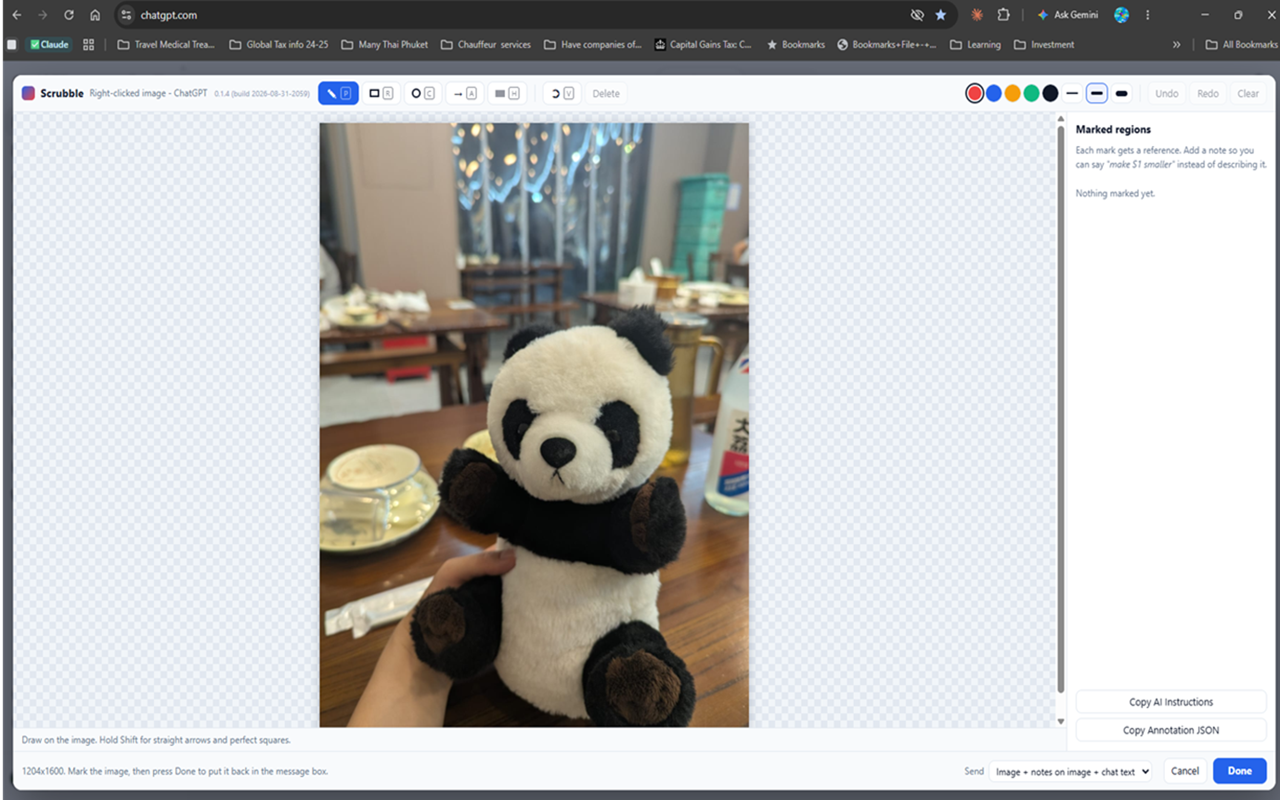
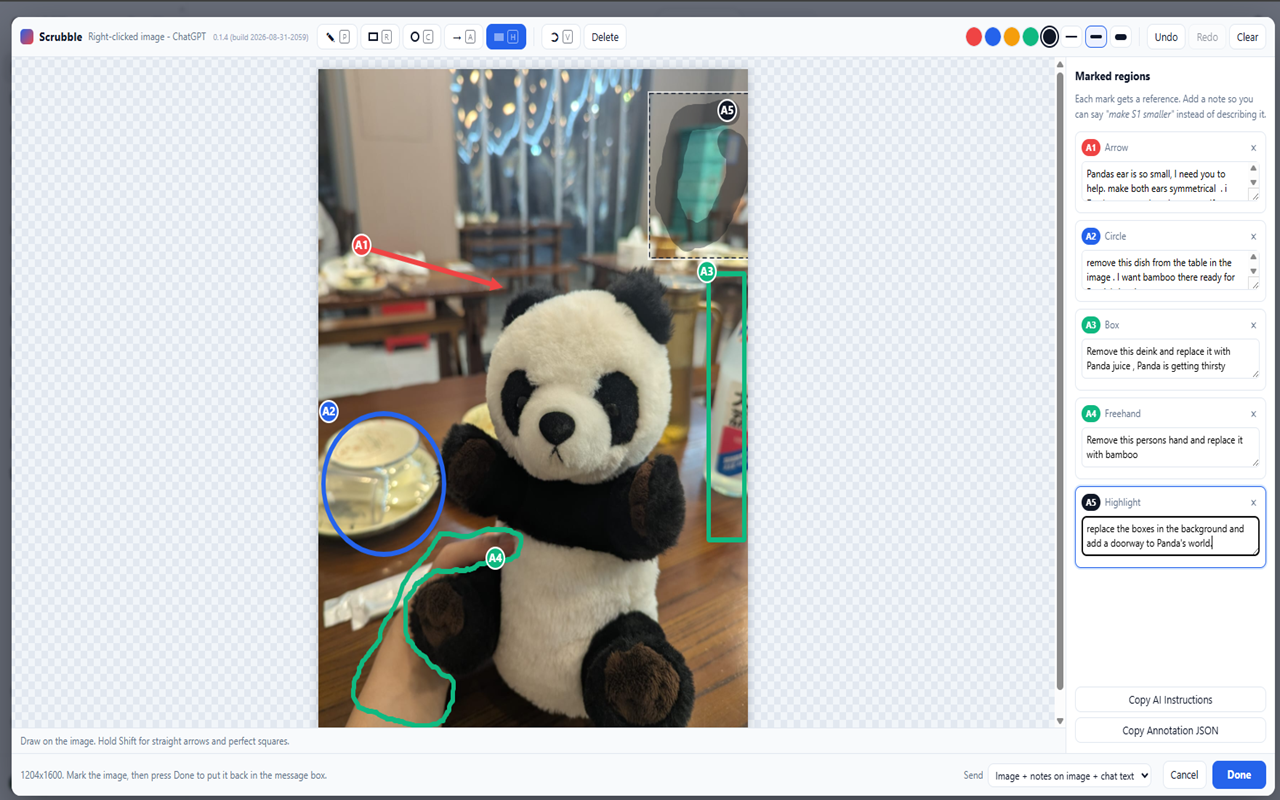
Here are real notes from the example screenshot below, each tied to a numbered mark:
- "A2 — remove this dish from the table in the image. I want bamboo there ready for Panda's lunch"
- "A4 — Remove this persons hand and replace it with bamboo"
- "A5 — replace the boxes in the background and add a doorway to Panda's world."
An easier way: mark it inside the chat with Scrubble
Scrubble is a Chrome extension that does the three parts above inside supported AI conversations. The demo below shows ChatGPT:
- Open Scrubble. Right-click an image in your chat and choose "Use Scrubble on this image".
- Mark the area. Use an arrow, box, circle, freehand or highlight.
- Add a note to each mark. Marks are numbered A1, A2, A3 so your notes line up with the image.
- Press Done. The annotated image and the matching instructions are placed in the chat's message box. You review them, add anything else, and press Send yourself.
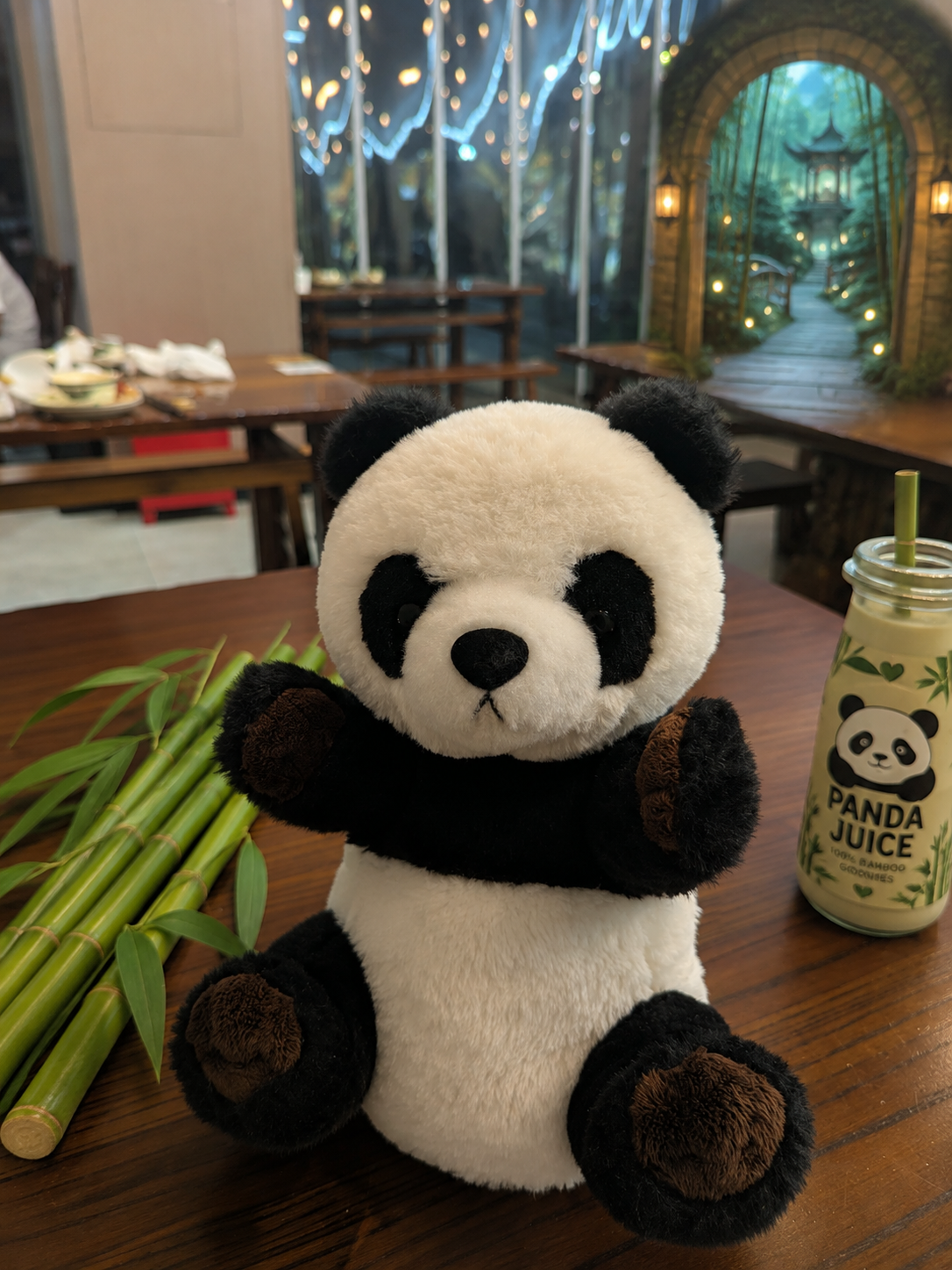
Example: a playful photo edit. The same approach works for screenshots, layouts and designs.
Using it for screenshots and UI changes
Designers, developers and founders often send an AI a screenshot of a page or app and ask what to change. Marking the specific elements and numbering your notes means each instruction is attached to the thing it refers to.
Working with more than one image
If you Scrubble a second image in the same message, its marks are lettered B1, B2, B3, so notes for different images don't get confused.
What Scrubble does and doesn't do
- It adds marks and numbered notes so the AI can see what you mean.
- It does not edit images itself. Any editing, analysis or reply comes from your AI assistant.
- It works with ChatGPT, Claude, Google Gemini, Grok.com, Perplexity and Lovable, plus Grok inside X in its expanded/full-page experience only, in Chrome 116 or newer. Support varies by interface and feature.
- It fills the message box but doesn't send your message.
- Scrubble is not affiliated with OpenAI or Anthropic.
Try it free
You get 10 free Scrubbles every month. Paid plans are available; see Billing & Refunds.
Quick questions
Do I need to describe anything in words as well?
Yes. Marks show where. Your short notes say what you want. Together they remove most of the guesswork.
Does it work on screenshots, not just generated images?
Yes. Scrubble works on images in supported AI conversations, including screenshots you have uploaded there. Support varies by interface and feature.
What if the instructions don't land in the message box?
Scrubble copies them to your clipboard and tells you. Click the message box and paste. More help is on the Support page.
Does it work in other AI tools?
Yes. Scrubble supports ChatGPT, Claude, Google Gemini, Grok.com, Perplexity and Lovable, plus Grok inside X in its expanded/full-page experience only. Support does not cover every interface or feature. On Google Gemini, the hover badge may be inconsistent, but right-click works.